GitHub provides different workflows depending on whether you own the repository or are contributing to someone else’s project. Understanding these workflows is essential for collaborating effectively on GitHub.
GitHub flow
GitHub flow is a lightweight, branch-based workflow. The GitHub flow is useful for everyone, not just developers. The GitHub documentation has a good overview of the process and the reasons for using it. See GitHub flow.
The basic GitHub flow consists of:
- Create a branch from main
- Make changes and commit them
- Push the branch to GitHub
- Create a pull request
- Review and discuss changes
- Merge the pull request
- Delete the branch
Workflow for a forked repository
If you want to contribute to someone else’s project but don’t have write access to the repository, you can use a “fork and pull request” workflow. This is the standard way to contribute to open source projects.
The following image illustrates the workflow for using Git and GitHub to update files in a forked repository. The steps shown in red are a one-time action for each new repository you fork.
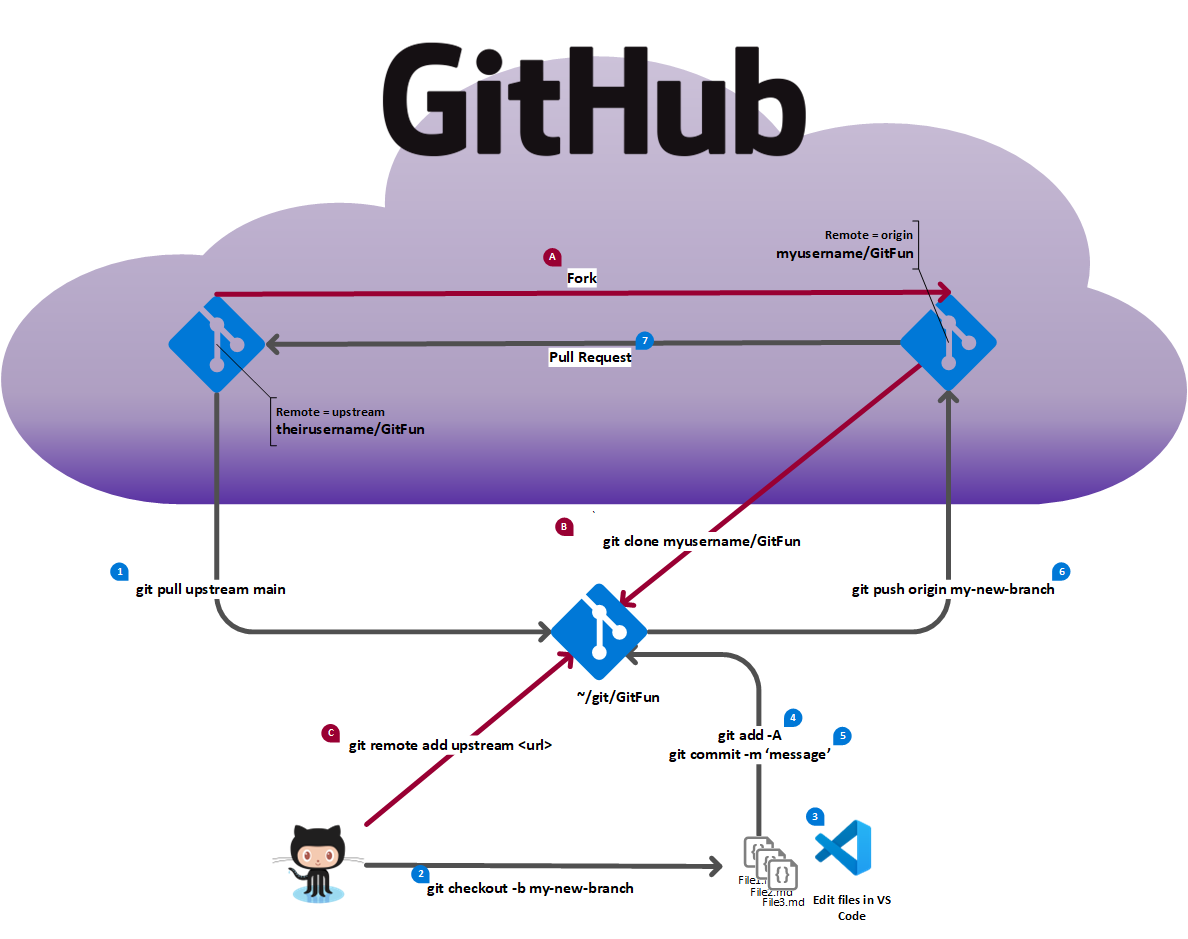
| Steps | Description of steps | Git command / GitHub actions |
|---|---|---|
| A | Fork the repo | Browse to the repository on GitHub and select the Fork button (top right). Open the Choose an owner dropdown and select your personal account. Select the Create fork button. |
| B | Clone the repo (once per machine) | git clone https://github.com/<your-account>/<repository-name>.git |
| C | Add the upstream remote | git remote add upstream https://github.com/<original-owner>/<repository-name>.git |
For a full discussion of forking, see Contributing to projects in the GitHub documentation.
The numbered steps (in black) are described in the table below.
| Steps | Description of steps | Git command / GitHub actions |
|---|---|---|
| 0 | Checkout the main branch | git checkout main |
| 1 | Sync the main branch | git pull upstream main; git push origin main |
| 2 | Create a new working branch | git checkout -b my-new-branch |
| 3 | Create new content | Use VS Code to create or edit files |
| 4 | Add changes for Git tracking | git add -A |
| 5 | Commit changes to local repo | git commit -m 'commit message' |
| 6 | Push working branch to fork | git push origin my-new-branch |
| 7 | Submit pull request | Go to the original repository’s pull request page and click the New pull request button.Base repository: original-owner/repository-name base: main <– head repository: your-account/repository-name compare: my-new-branch Fill out the pull request description and click Submit. |
| 8 | PR is reviewed | Make the necessary changes based on the review feedback. |
| 9 | PR is merged | Go to step 10 |
| 10 | Cleanup unneeded branch info | git checkout main; git push origin --delete my-new-branch; git branch -D my-new-branchThe git push command deletes the branch in your fork and deletes the tracking branch from your local repo. The git branch command deletes the branch from your local repo. |
| 11 | Start new change | Go to step 0 |